



Managing Android handheld scanners in one warehouse can be challenging. Managing hundreds of devices across several sites is a different problem.
Devices may arrive with inconsistent settings, employees may share scanners between shifts, and IT teams may need to troubleshoot issues from a distance. If every device must be configured or checked manually, routine work can quickly become an operational bottleneck.
A structured Android handheld scanner management plan helps warehouses standardize device setup, control work applications, apply security policies, and support devices remotely.
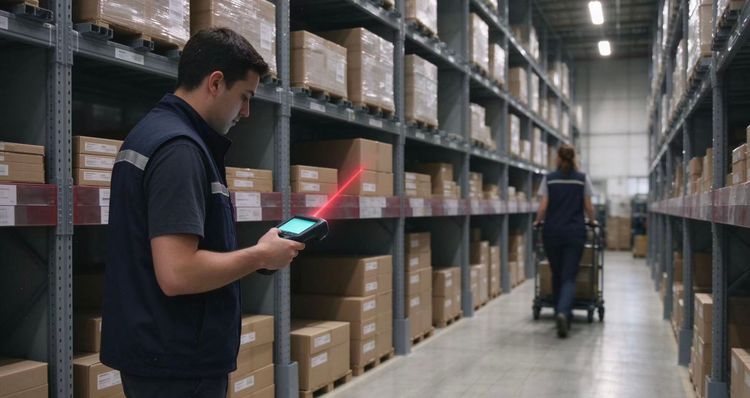
The term “handheld scanner” can refer to different equipment. Some warehouse teams use Android mobile computers with built-in barcode scanners. Others use standalone Bluetooth barcode scanners connected to a phone or tablet.
A mobile device management platform generally manages the Android device: its enrollment, applications, policies, and supported remote commands. A standalone barcode scanner may need to be managed through its own software or through the Android device it is paired with. Confirm compatibility for your specific Android device, scanning peripheral, Android version, and configuration before planning a rollout.
For Android mobile computers used in warehouse operations, central management can help IT teams:
- Apply consistent settings across locations and device groups
- Distribute approved work applications and updates
- Restrict devices to approved apps or workflows where supported
- Review device status and compliance
- Automatically monitor device signals and collected operational data, such as connectivity, battery health, app status, scan errors, and policy compliance, where supported
- Set thresholds and alerts so IT teams can investigate emerging issues before they disrupt a shift
- Troubleshoot supported devices remotely
Automated monitoring depends on what each device, operating system, application, and management platform can report. Validate which signals are available, how often data is collected, and who receives alerts before relying on monitoring for operational decisions.
Shadowalk provides centralized device management, application control, policy enforcement, remote support, and device monitoring. See Shadowalk’s logistics and transportation solutions for the current capabilities and supported use cases.
1. Map Devices to Warehouse Workflows
Start by identifying how devices are used. A receiving team may need different apps and permissions from a picking, packing, or shipping team.
Create a configuration plan for each role or workflow. Document:
- Required warehouse, inventory, or delivery applications
- Wi-Fi and connectivity settings
- Device restrictions and security requirements
- Update windows that avoid peak operating hours
- What employees should do when a device is lost or stops working
Group Android mobile computers by location, team, or task where your management platform supports it. This makes it easier to apply the right policies without maintaining a separate manual checklist for every device.
2. Standardize Device Enrollment
A consistent enrollment process reduces setup differences between sites. Depending on the Android device, ownership model, and management solution, enrollment options may include QR-code provisioning or zero-touch enrollment.
Google’s Android Management documentation explains that enrollment methods and management modes depend on how a device is owned and used. Company-owned devices intended only for work can also be configured as dedicated devices for a specific purpose. See Android device enrollment and provisioning.
Before deployment, test the full process with a small group of devices:
- Enroll a test device using the intended method.
- Apply the warehouse role’s configuration.
- Confirm the right apps and policies are installed.
- Test Wi-Fi access, barcode scanning, and the warehouse application.
- Document the steps for site staff and support teams.
Do not assume that an enrollment method works identically across every brand or model. Validate it with the actual devices, Android versions, and management configuration you plan to use. If you are buying through a reseller, confirm whether the reseller has assigned the devices to your organization’s zero-touch enrollment account and verify that the assignment is correct before shipment. This check is especially relevant to IT administrators and procurement teams coordinating device purchasing and rollout.
3. Restrict Devices to the Work They Need to Do
Shared warehouse devices can drift from their intended use if employees can freely change settings or install unapproved apps. For devices dedicated to a single workflow, an appropriate kiosk or dedicated-device configuration can limit access to the applications needed for that task.
For example, a picking device might only need access to the warehouse management app, a scanner utility, and a support tool. A shipping station may require a different set of approved applications. Where the platform supports it, automated policy checks can flag devices that have unexpected apps, settings changes, loss of connectivity, or other reported signals that may affect the workflow.
Use restrictions carefully. Confirm that supervisors and IT administrators can still perform essential recovery steps, apply updates, and troubleshoot the device. Android management capabilities vary by enrollment mode, device manufacturer, and operating system version. Test both the restrictions and the monitoring/alert workflow before applying them across all sites.
4. Roll Out Application and OS Updates in Stages
An app update that works well in one warehouse may create disruption if it is deployed during a busy shift across every location.
A safer rollout process is to:
- Test updates with a small pilot group
- Schedule deployments outside critical operating periods
- Confirm devices reconnect and report status afterward
- Keep a record of app versions by site or device group
- Define a rollback or support process for failed updates
- Use available update and device-status signals to identify failed installations or devices that have not checked in
If devices are distributed across locations with different network conditions, plan for update size, connectivity, and timing. A staged rollout can help teams identify issues before a change reaches the full fleet.
5. Prepare for Remote Support
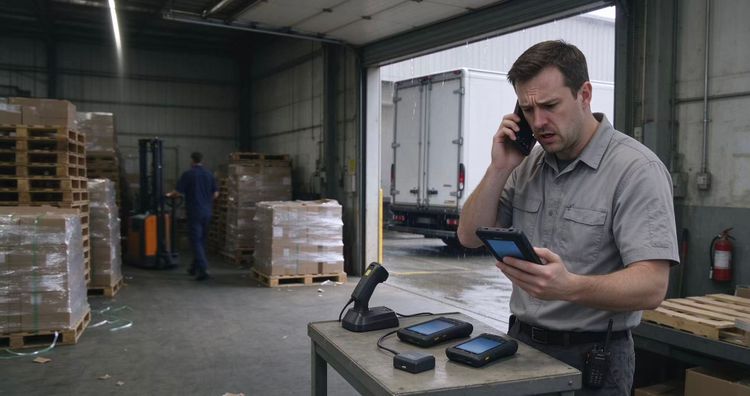
When a device stops working, it may be several hours away from the IT team. Remote support can help administrators investigate supported devices without immediately asking staff to ship or return them.
Depending on the device and configuration, remote management may help teams check device status, review policy compliance, restart a device, or use supported remote viewing or control features. Capabilities can vary by manufacturer, Android version, permissions, and installed components, so test the support workflow before depending on it operationally.
Shadowalk’s device management platform includes remote support and device-control capabilities; confirm the specific functions available for your Android models during a technical evaluation.
6. Pilot Before Expanding to More Sites
A pilot helps identify practical issues that may not appear in a configuration document. Start with one workflow or a small group of devices at one site.
During the pilot, track:
- Enrollment success and setup time
- App installation and update success
- Device availability during shifts
- Common support requests
- Differences between device models or locations
- Feedback from warehouse supervisors and employees
- Whether available device and application signals are collected consistently and alerts reach the right support team
Once the process is repeatable, expand by location or device group. This gives IT teams a chance to adjust the setup before a small issue affects the full fleet.
Multi-Warehouse Android Device Management Checklist
Before rolling out Android handheld scanner management, confirm that you have:
- A current inventory of Android mobile computer models and separate barcode-scanning peripherals, if used
- A documented setup for each warehouse role
- A tested enrollment process for each device model and Android version
- Approved application and device policies
- An update schedule that fits warehouse shifts
- A process for lost devices and remote troubleshooting
- A pilot and rollout plan for additional locations
- A defined set of device and app signals to monitor, with alert owners and escalation steps
- A way to review device status after deployment
A central management approach can make it easier to maintain consistent settings, applications, monitoring, and support processes across multiple warehouse locations. The right setup depends on your Android device models, Android versions, warehouse applications, scanning peripherals, and operating requirements.
Explore Shadowalk’s warehouse and logistics solutions, review pricing, or book a personalized demo to discuss your device fleet.


