


'%3e%3cpath%20d='M9.00078%2016.2C8.01328%2016.2%207.08203%2016.0125%206.20703%2015.6375C5.33203%2015.2625%204.5664%2014.7469%203.91015%2014.0907C3.2539%2013.4344%202.73828%2012.6688%202.36328%2011.7938C1.98828%2010.9188%201.80078%209.98755%201.80078%209.00005C1.80078%208.00005%201.98828%207.06567%202.36328%206.19692C2.73828%205.32817%203.2539%204.56567%203.91015%203.90942C4.5664%203.25317%205.33203%202.73755%206.20703%202.36255C7.08203%201.98755%208.01328%201.80005%209.00078%201.80005C10.0008%201.80005%2010.9352%201.98755%2011.8039%202.36255C12.6727%202.73755%2013.4352%203.25317%2014.0914%203.90942C14.7477%204.56567%2015.2633%205.32817%2015.6383%206.19692C16.0133%207.06567%2016.2008%208.00005%2016.2008%209.00005C16.2008%209.98755%2016.0133%2010.9188%2015.6383%2011.7938C15.2633%2012.6688%2014.7477%2013.4344%2014.0914%2014.0907C13.4352%2014.7469%2012.6727%2015.2625%2011.8039%2015.6375C10.9352%2016.0125%2010.0008%2016.2%209.00078%2016.2ZM9.00078%2014.7938C9.21328%2014.5813%209.42578%2014.1844%209.63828%2013.6032C9.85078%2013.0219%2010.0133%2012.3875%2010.1258%2011.7H7.87578C7.98828%2012.3875%208.15078%2013.0219%208.36328%2013.6032C8.57578%2014.1844%208.78828%2014.5813%209.00078%2014.7938ZM7.29453%2014.6063C7.11953%2014.2313%206.9664%2013.8%206.83515%2013.3125C6.7039%2012.825%206.59453%2012.2875%206.50703%2011.7H3.82578C4.18828%2012.4125%204.66953%2013.0219%205.26953%2013.5282C5.86953%2014.0344%206.54453%2014.3938%207.29453%2014.6063ZM10.707%2014.6063C11.457%2014.3938%2012.132%2014.0344%2012.732%2013.5282C13.332%2013.0219%2013.8133%2012.4125%2014.1758%2011.7H11.4945C11.407%2012.2875%2011.2977%2012.825%2011.1664%2013.3125C11.0352%2013.8%2010.882%2014.2313%2010.707%2014.6063ZM3.31953%2010.35H6.33828C6.31328%2010.1125%206.29765%209.87817%206.2914%209.64692C6.28515%209.41567%206.28203%209.18755%206.28203%208.96255C6.28203%208.73755%206.28515%208.51567%206.2914%208.29692C6.29765%208.07817%206.31328%207.86255%206.33828%207.65005H3.31953C3.25703%207.88755%203.21328%208.11567%203.18828%208.33442C3.16328%208.55317%203.15078%208.77505%203.15078%209.00005C3.15078%209.22505%203.16328%209.44692%203.18828%209.66567C3.21328%209.88442%203.25703%2010.1125%203.31953%2010.35ZM7.70703%2010.35H10.2945C10.3195%2010.1%2010.3352%209.86567%2010.3414%209.64692C10.3477%209.42817%2010.3508%209.21255%2010.3508%209.00005C10.3508%208.78755%2010.3477%208.5688%2010.3414%208.3438C10.3352%208.1188%2010.3195%207.88755%2010.2945%207.65005H7.70703C7.68203%207.88755%207.6664%208.1188%207.66015%208.3438C7.6539%208.5688%207.65078%208.78755%207.65078%209.00005C7.65078%209.21255%207.6539%209.4313%207.66015%209.6563C7.6664%209.8813%207.68203%2010.1125%207.70703%2010.35ZM11.6633%2010.35H14.682C14.7445%2010.1125%2014.7883%209.88442%2014.8133%209.66567C14.8383%209.44692%2014.8508%209.22505%2014.8508%209.00005C14.8508%208.77505%2014.8383%208.55005%2014.8133%208.32505C14.7883%208.10005%2014.7445%207.87505%2014.682%207.65005H11.6633C11.6883%207.88755%2011.7039%208.12192%2011.7102%208.35317C11.7164%208.58442%2011.7195%208.81255%2011.7195%209.03755C11.7195%209.26255%2011.7164%209.48442%2011.7102%209.70317C11.7039%209.92192%2011.6883%2010.1375%2011.6633%2010.35ZM11.4945%206.30005H14.1758C13.8133%205.58755%2013.332%204.97817%2012.732%204.47192C12.132%203.96567%2011.457%203.6063%2010.707%203.3938C10.882%203.7688%2011.0352%204.20005%2011.1664%204.68755C11.2977%205.17505%2011.407%205.71255%2011.4945%206.30005ZM7.87578%206.30005H10.1258C10.0133%205.61255%209.85078%204.97817%209.63828%204.39692C9.42578%203.81567%209.21328%203.4188%209.00078%203.2063C8.78828%203.4188%208.57578%203.81567%208.36328%204.39692C8.15078%204.97817%207.98828%205.61255%207.87578%206.30005ZM3.82578%206.30005H6.50703C6.59453%205.71255%206.7039%205.17505%206.83515%204.68755C6.9664%204.20005%207.11953%203.7688%207.29453%203.3938C6.54453%203.6063%205.86953%203.96567%205.26953%204.47192C4.66953%204.97817%204.18828%205.58755%203.82578%206.30005Z'%20fill='%23041818'/%3e%3c/g%3e%3c/svg%3e)
A customer-facing tablet in a hotel lobby gets dragged out of its browser and into the Android settings. A warehouse PDA worker closes the WMS app to play a game and the device never comes back. A field tablet gets loaded with personal accounts, photos, and apps that should never touch company data.
None of these are really "app problems." They are device-purpose problems. A general-purpose Android device will behave like a general-purpose Android device unless something is deliberately constraining it. That something is Kiosk Mode.
If you manage Android handhelds, tablets, or wall-mounted terminals that are meant to do one job — and only that job — Kiosk is usually the single most important policy you configure. This guide explains what Kiosk actually means in a Mobile Device Management context, where it earns its value, and specifically how Shadowalk implements it through the Lock Down feature in the Configuration menu.
What does Kiosk mode actually mean in MDM?
In a Mobile Device Management context, Kiosk Mode is a device-lockdown strategy, not a hardware form factor. It is the policy that turns a general-purpose device into a dedicated business terminal: the user can only reach the apps, websites, or functions you authorize, while the home screen, system settings, app store, notification shade, and other escape routes are blocked.
This distinction matters because people often hear "Kiosk" and picture a physical self-service kiosk machine. In MDM, Kiosk is a software state applied to ordinary devices — the same rugged scanner, the same $150 tablet, the same point-of-sale unit. MDM simply decides what that device is allowed to show and touch.
Different ecosystems name it slightly differently, but the idea is the same:
| Platform | Common name for the lockdown |
|---|
| Platform | Common name for the lockdown |
|---|---|
| Android Enterprise | Kiosk Mode / COSU (Company-Owned, Single-Purpose) / Dedicated Device |
| iOS / iPadOS | Single App Mode / Guided Access / Assisted Access |
| Windows | Assigned Access / Kiosk mode |
When you evaluate any MDM — Shadowalk, SOTI, Hexnode, 42Gears, Scalefusion — "Kiosk Mode supported" is the headline, but the real question is always how much control you get over what the locked device looks like and can do. That is exactly where Shadowalk's Lock Down goes further than a basic launcher lock.
The two shapes of Kiosk: Single-App and Multi-App
Kiosk deployments generally take one of two shapes, and choosing between them defines your whole rollout.
| Type | What the user sees | Typical use |
|---|
| Type | What the user sees | Typical use |
|---|---|---|
| Single-App Kiosk | The device boots straight into one app or one web page and cannot leave it | Self check-in, POS, digital signage, guest registration |
| Multi-App Kiosk | Only a whitelist of apps is available; the user can switch among them | Field service, logistics PDAs, nurse stations, frontline workers |
Single-app is the strictest, "turn it into a dedicated terminal" form. Multi-app gives users a controlled workspace — they still can't reach the system, settings, or anything outside your approved set, but they can move between the tools their job actually needs.
Where is Kiosk mode used? Industry and business scenarios
Kiosk is most valuable wherever a device has one defined job and uncontrolled usage creates cost, risk, or a broken experience. The recurring scenes across industries:
- Retail & hospitality — POS terminals, self-ordering and self-checkout tablets, e-price and menu displays, guided-selling tablets for staff.
- Logistics, warehousing & manufacturing — barcode-scanning PDAs and industrial tablets running only WMS/ERP or a scanning app, so a picker can't wander off the workflow.
- Field & frontline work — service, inspection, and sales devices limited to the ticketing, CRM, mapping, and messaging apps that matter.
- Education — student and exam tablets restricted to learning apps or a testing app, with entertainment locked out.
- Healthcare — nurse-station and ward terminals exposing only the clinical app, protecting patient data from unrelated access.
- Public services & hospitality — airport check-in, queueing and ticketing, wayfinding and survey terminals.
- Digital signage — advertising and information screens that show only approved content and stay online.
The pattern is identical in all of them: a device that must stay on-task, on-brand, and reachable by IT.

The core role Kiosk mode plays
Why does Kiosk matter so much that every serious MDM comparison lists it? Because it delivers several benefits at once:
- Purpose-bound devices — users can only touch the functions the business needs; personal apps, games, and settings are simply not reachable.
- Fewer support tickets — blocking Home, Recents, the status bar, the app store, and the browser removes the most common ways a "one-purpose" device breaks mid-shift.
- Data protection and compliance — combined with disabling camera, screenshots, Bluetooth, USB transfer, and copy/paste, the locked surface shrinks the ways sensitive data can leak out.
- Operational scale — policies, app installs, updates, and reboots are pushed remotely to hundreds of devices, so no technician walks a device bank one unit at a time.
- A consistent, branded experience — for customer-facing and frontline devices, the screen can carry your brand instead of a generic Android launcher.
- Asset security — paired with location, geofencing, low-battery alerts, and remote lock/erase, dedicated devices are far harder to misuse or lose.
In one sentence: Kiosk turns a general-purpose device into a dedicated business terminal that stays on-task, on-brand, and under control.
How Shadowalk delivers Kiosk — Inside the Lockdown feature
This is where Shadowalk separates itself from a basic "lock to one app" switch. In the Shadowalk console, Kiosk lives under Configuration → Lock Down, and it works less like a simple lock and more like a programmable launcher — you aren't just restricting the device, you are designing what its screen is. The feature splits into two tabs and a few sub-screens.
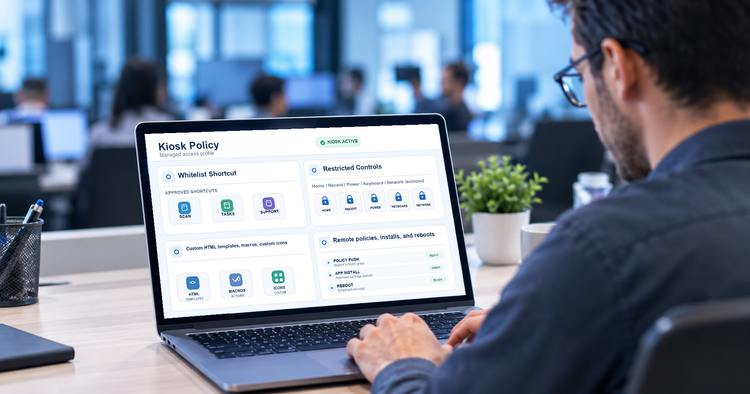
Device Control — the lockdown and its switches. This tab is the master control. Under Custom Screen you manage the home-screen shortcuts that appear on the locked device (added one-by-one from the Add Home Screen screen). Under Network Settings you decide whether users can toggle Wi-Fi, cellular, and Bluetooth while locked. Under Lock Settings you control the escape routes — the [Home] button, the [Recent] button, the power menu, the keyboard, system information, local notifications, and a Fully Lock Device switch for the strictest single-purpose deployments. This is the layer that stops anyone from slipping back to the stock Android launcher.
Template — the look and layout engine. Instead of forcing users onto a stock launcher, Shadowalk lets the home screen be an HTML template. You can pick an official System Template (the shadowwalk-template horizontal or vertical layout) or upload your own Custom HTML template — meaning you can brand the device completely, lay it out for a specific workflow, and even display data. The Preview Settings (Device Manufacturer → Device Model, e.g. Zebra, UROVO, MEFERI) render an accurate live preview so you see exactly how the template lands on the real hardware you deploy.
Add Custom Template — dynamic, device-specific data via macros. When you author a custom HTML template, you can insert macros such as %DEVICEID%, %MAC%, %MANUFACTURER%, %MODEL%, %PLATFORM%, %SERIALNUM%, %ICCID%, and %IMEI%. At load time, Shadowalk substitutes the real values from that specific device. The effect is a launcher that knows who and where it is — for example a station tablet that permanently shows "Current station: Zone A · Line 3 · Device 05 (ID 123456)" with no manual labeling.
Add Home Screen — the shortcuts users can actually reach. For each tile on the locked screen you set a Display Name, an Operation (open an app by package name, or open a URL via browser://), and toggles:
- Start Automatically at Boot — the app or page launches on its own the moment the device powers on.
- Enable Single-App Mode — when on, the user is locked inside that one app and cannot return to the HTML launcher (true dedicated-terminal behavior); when off, they can step back out to your branded home screen.
- Hide Item and Use Custom Image — hide a shortcut, or give it a custom branded icon instead of the default.
Put together, these four screens mean Shadowalk can do everything a conventional Kiosk does — single- and multi-app lockdown, button and network restrictions — and also give you a fully branded, dynamic, web-technology home screen that most Kiosk features cannot match.
What that means in real deployments
Branded enterprise self-service terminals. Hotel check-in, mall wayfinding, government queue-and-ticket, and factory-floor SOP viewers. You author a clean HTML home screen with your logo and guided shortcuts, lock the buttons, and customers or workers never see Android underneath.
Digital dashboards and industrial consoles. In a sorting hub or on a production line, macros surface the live device identity on the launcher, the WMS link and an inventory query sit one tap away, and the device drops straight into the system on boot — no operator setup required.
Brand-grade frontline devices (COSU). Waitstaff ordering tablets, real-estate showing iPads, field-sales devices: the screen is a custom company UI holding only the CRM, ordering, and messaging apps, projecting a deliberate, professional image.
Visitor and information capture. On a trade-show or lobby device, the registration page opens full-screen on boot with Single-App Mode on; after the form completes it returns to the launcher, and the visitor never reaches the device's core.
Kiosk mode vs. A standard device Home Screen
| Dimension | Standard launcher | Kiosk (Shadowalk Lock Down) |
|---|
| Dimension | Standard launcher | Kiosk (Shadowalk Lock Down) |
|---|---|---|
| What the user sees | Stock Android home screen | A controlled, branded home screen or single app |
| Escape routes | Full access | Home/Recent/Power/keyboard/network restricted |
| App access | Everything installed | Whitelisted shortcuts only |
| Boot behavior | Manual | Optional auto-launch of the required app or page |
| Branding | None | Custom HTML templates, macros, custom icons |
| Device identity | Hidden from UI | Can display ID, model, MAC, serial, ICCID/IMEI live |
| IT scale | Per-device effort | Remote policies, installs, and reboots at scale |
How to start a Kiosk pilot on Shadowalk
Feature lists don't tell you how Kiosk behaves on your hardware, so validate on real devices before a full rollout:
- Pick a few representative devices and match their exact manufacturer and model in Preview Settings.
- Start from a System Template, then graduate to a Custom HTML template with macros once the layout is right.
- Add your required shortcuts on the Device Control → Add Home Screen screen and test auto-launch.
- Try both modes — Multi-App (Single-App Mode off) and true Single-App (Single-App Mode on) — against your actual workflow.
- Lock the buttons and network toggles and confirm no escape route remains.
- Time the full setup so you can estimate rollout effort at scale.
There is no single Kiosk configuration that fits every business. If your fleet is mostly Android handhelds, tablets, or terminals that need to do one job, Shadowalk's Lock Down gives you both the lock and the launcher — purpose-bound, brandable, dynamic, and manageable at scale.
Ready to simplify device management?
See how Shadowalk's Lock Down can secure and operate your device fleet.
Book a demo


